DCM UI
The DCM UI is a Backstage plugin that provides a web interface for managing DCM resources. It offers the same resource management capabilities as the CLI, presented as interactive data tables with inline search, pagination, and action buttons.
Accessing the Backstage UI
To open the Backstage UI, first determine the URL for your deployment.
On a cluster (OpenShift):
Run the following command, replacing <dcm-namespace> with the namespace where
DCM is deployed:
oc get routes -n <dcm-namespace>Copy the URL from the HOST/PORT column and open it in your browser.
Local setup:
If running DCM locally, Backstage is typically available at
http://localhost:7007.
Once you have the Backstage URL open, navigate to Administration → Data
Center in the Backstage sidebar, or go directly to <backstage-url>/dcm.
The Data Center page is organized into six tabs, one for each core DCM resource type.
Authentication
When the control plane requires JWT authentication, sign in to Backstage (or Red Hat Developer Hub) using the identity provider your platform operator configured. The DCM plugin sends bearer tokens to the control plane on your behalf.
The default local compose UI does not configure Backstage SSO. For auth-enabled
local stacks, use the CLI (dcm login) or API tokens for control-plane access,
and configure Backstage authentication separately for browser login. See
Authentication.
Common patterns
All tabs share the following interaction patterns:
- Search — A search field in the card header filters the table rows in real time across visible columns.
- Pagination — Each table supports 5, 10, or 25 rows per page. The selected page size is persisted across sessions.
- Action buttons — Row-level actions appear as icon buttons in the Actions column. Destructive actions open a confirmation dialog before proceeding.
- Empty state — When no data is available, the table shows an empty state with a prompt to create the first resource where applicable.
Providers
The Providers tab lists all infrastructure providers registered with DCM. Providers are created automatically when service provider instances connect and register their available infrastructure.
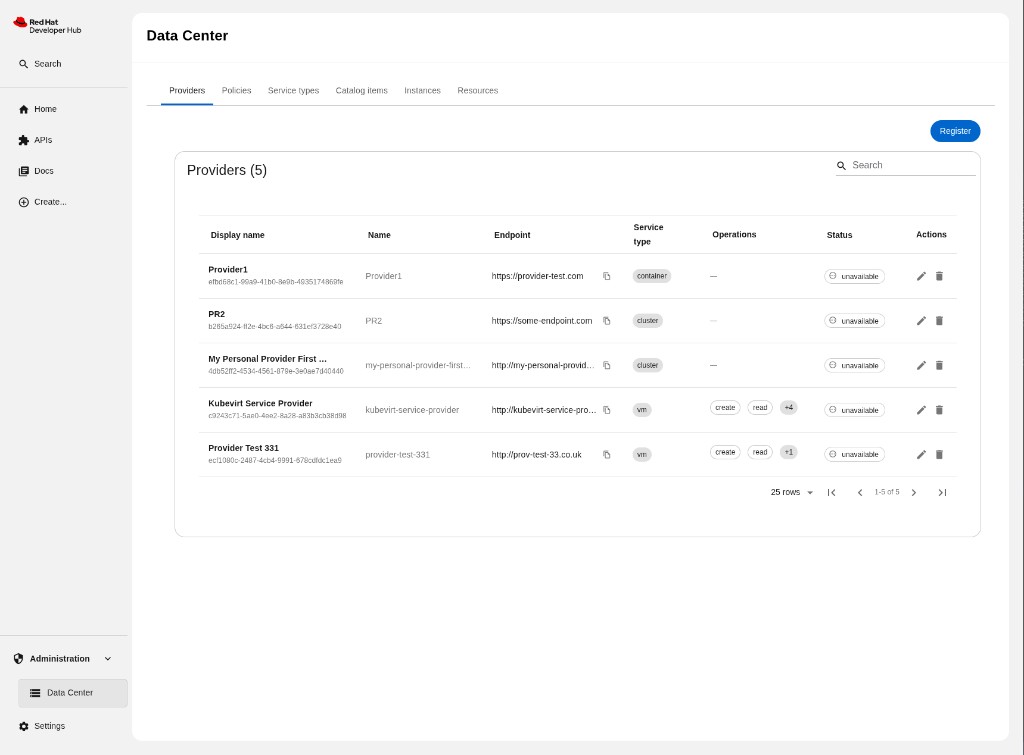
Columns
| Column | Description |
|---|---|
| Display name | Human-readable label, with the provider ID shown as a caption below. |
| Name | Unique internal name of the provider. |
| Endpoint | The provider’s API endpoint URL, with a copy button. |
| Service type | The service type the provider supports (e.g., vm). |
| Operations | Operations the provider exposes, shown as chips. Overflow is shown as a “+N” tooltip. |
| Status | Current health status of the provider. |
| Actions | Edit and delete buttons. |
Actions
- Register provider — Opens a dialog to register a new provider (display name, name, endpoint, service type, operations).
- Edit — Opens the edit dialog pre-filled with the current values.
- Delete — Opens a confirmation dialog before removing the provider.
- Copy endpoint — Copies the provider’s API endpoint URL to the clipboard.
For CLI equivalent operations, see Providers.
Policies
The Policies tab lists all OPA Rego policies configured in DCM.
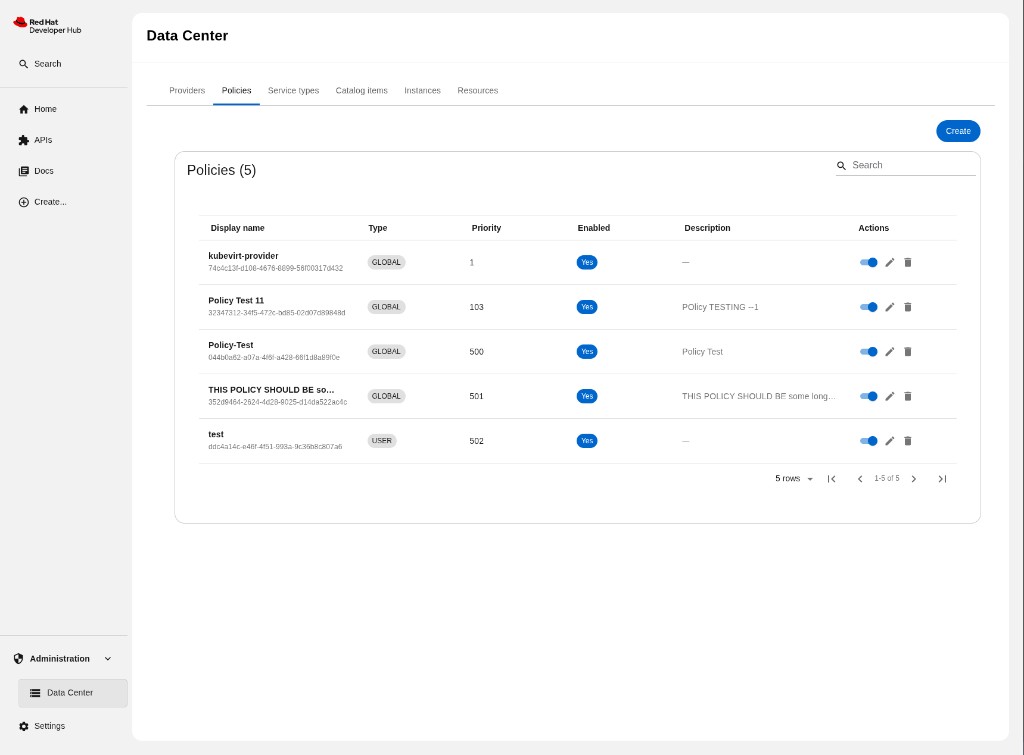
Columns
| Column | Description |
|---|---|
| Display name | Human-readable label, with the policy ID shown as a caption below. |
| Type | Policy scope (GLOBAL or USER). |
| Priority | Numeric evaluation order. Lower numbers are evaluated first (default: 500). |
| Enabled | Whether the policy is active (Yes or No). |
| Description | Short description of the policy’s purpose. |
| Actions | An enable/disable toggle switch, an edit button, and a delete button. |
Actions
- Create policy — Opens a dialog to create a new policy (display name, type, priority, enabled toggle, description, Rego code).
- Edit — Opens the edit dialog pre-filled with the current values.
- Delete — Opens a confirmation dialog before removing the policy.
- Enable/Disable toggle — Immediately enables or disables the policy inline, without opening a dialog. Disabled policies are not evaluated during instance placement.
Note: For details on writing Rego code for DCM policies, including the expected input/output structure, see Policies.
For CLI equivalent operations, see Policies.
Service Types
The Service Types tab is a read-only view of all service type schemas registered in DCM. Service types define the structure and available fields for catalog items. They are created automatically when service provider instances register with DCM.
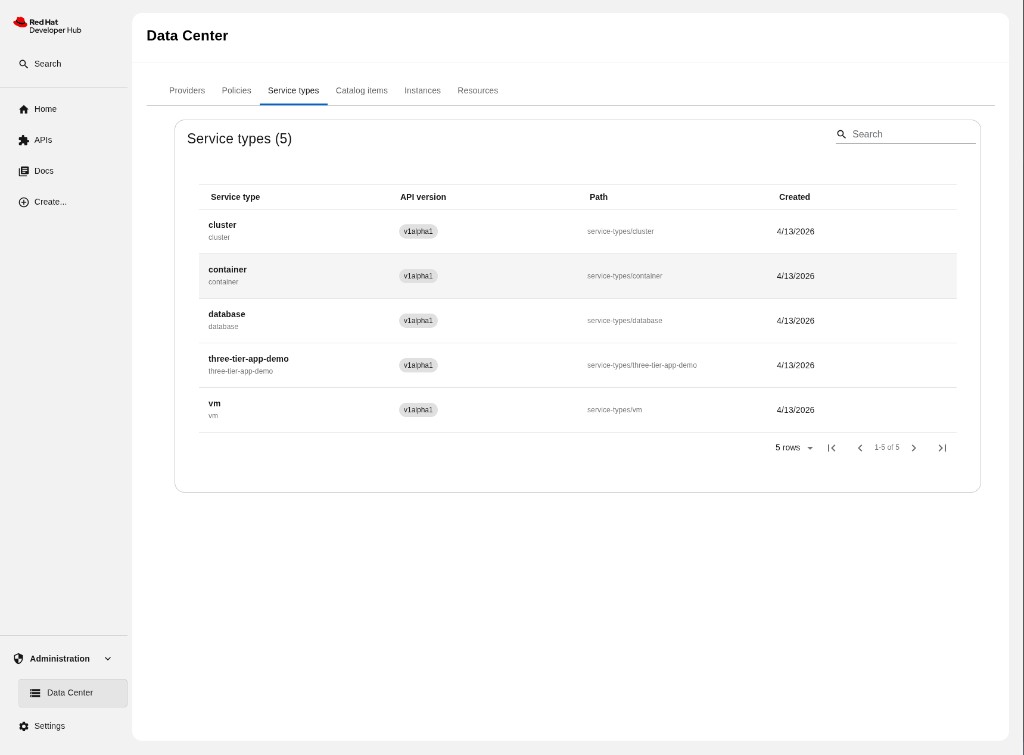
Columns
| Column | Description |
|---|---|
| Service type | Name of the service type, with its UID shown as a caption below. |
| API version | Schema version of the service type (e.g., v1alpha1). |
| Path | Resource path for the service type definition. |
| Created | Date and time the service type was registered. |
Actions
Search, sort by column header, and pagination are available. There are no create, edit, or delete actions.
For CLI equivalent operations, see Service Types.
Catalog Items
The Catalog Items tab lists all catalog items in DCM. Create and edit operations open a side drawer on the right side of the screen rather than a modal dialog.
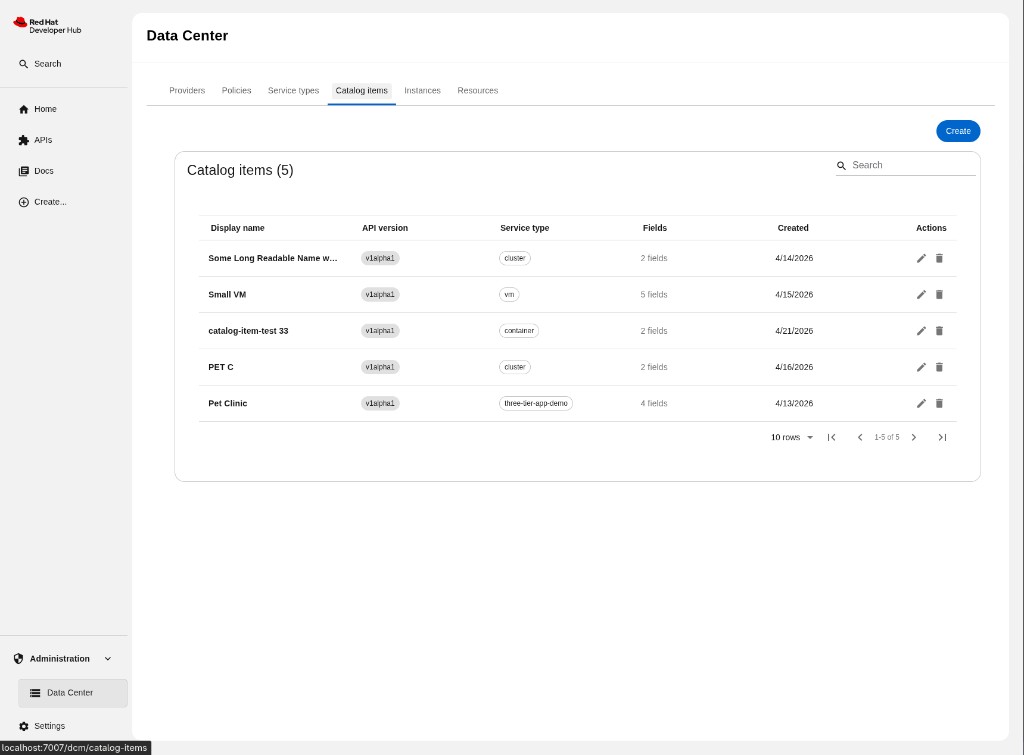
Columns
| Column | Description |
|---|---|
| Display name | Human-readable label for the catalog item. |
| API version | Schema version of the catalog item (e.g., v1alpha1). |
| Service type | The service type this catalog item is based on. |
| Fields | Number of configurable fields defined in the catalog item (e.g., 3 fields). |
| Created | Date and time the catalog item was created. |
| Actions | Edit and delete buttons. |
Actions
- Create catalog item — Opens the side drawer to define a new catalog item (display name, API version, service type, fields configuration).
- Edit — Opens the side drawer pre-filled with the current values.
- Delete — Opens a confirmation dialog before removing the catalog item.
Note: Deleting a catalog item does not automatically delete existing instances created from it. Manage instances separately in the Instances tab.
For CLI equivalent operations and a full field reference, see Catalog Items.
Instances
The Instances tab lists all provisioned catalog item instances.
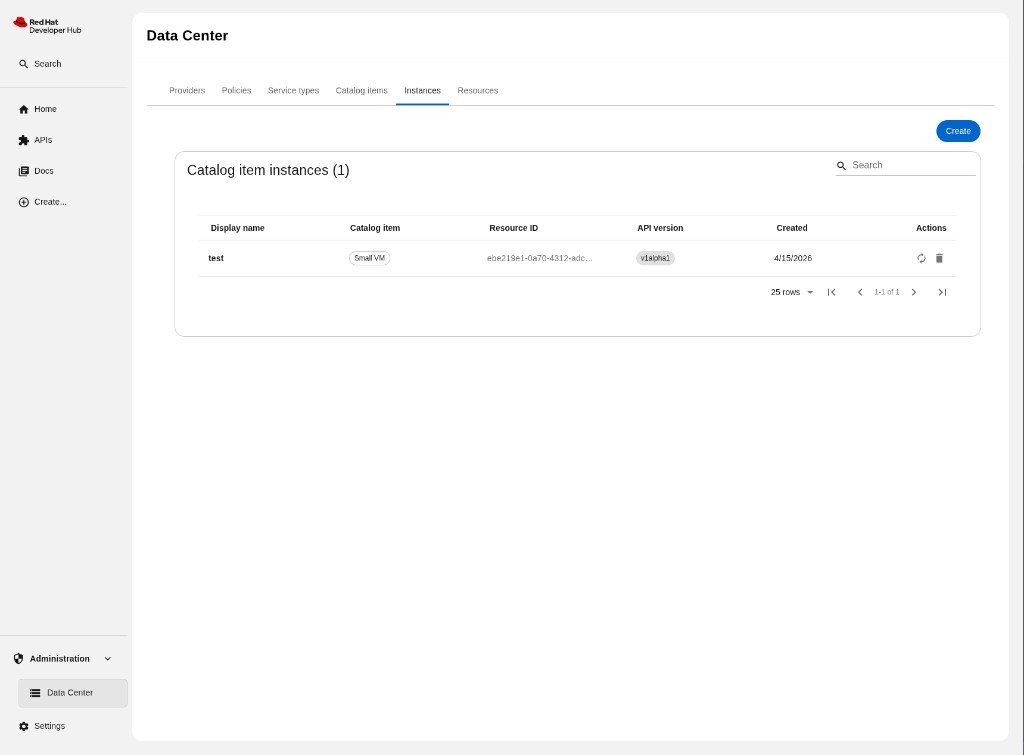
Columns
| Column | Description |
|---|---|
| Display name | Human-readable label for the instance. |
| Catalog item | The catalog item the instance was created from, shown as a chip. |
| Resource ID | ID of the underlying service provider resource (truncated). |
| API version | Schema version of the instance (e.g., v1alpha1). |
| Created | Date and time the instance was created. |
| Actions | A rehydrate button and a delete button. |
Actions
- Create instance — Opens a dialog to deploy a new instance (display name, catalog item selection, user values for editable fields).
- Rehydrate — Re-triggers the provisioning flow for the instance. Useful when a provider has recovered from a failure, the underlying resource needs to be recreated, or placement policies have changed. A new resource is provisioned before the old one is deleted.
- Delete — Opens a confirmation dialog before removing the instance. Deletion also triggers cleanup of the underlying resource on the provider.
For CLI equivalent operations, see Catalog Item Instances.
Resources
The Resources tab is a read-only view of all service type instances provisioned through DCM — the actual infrastructure resources created on providers when catalog item instances are deployed.
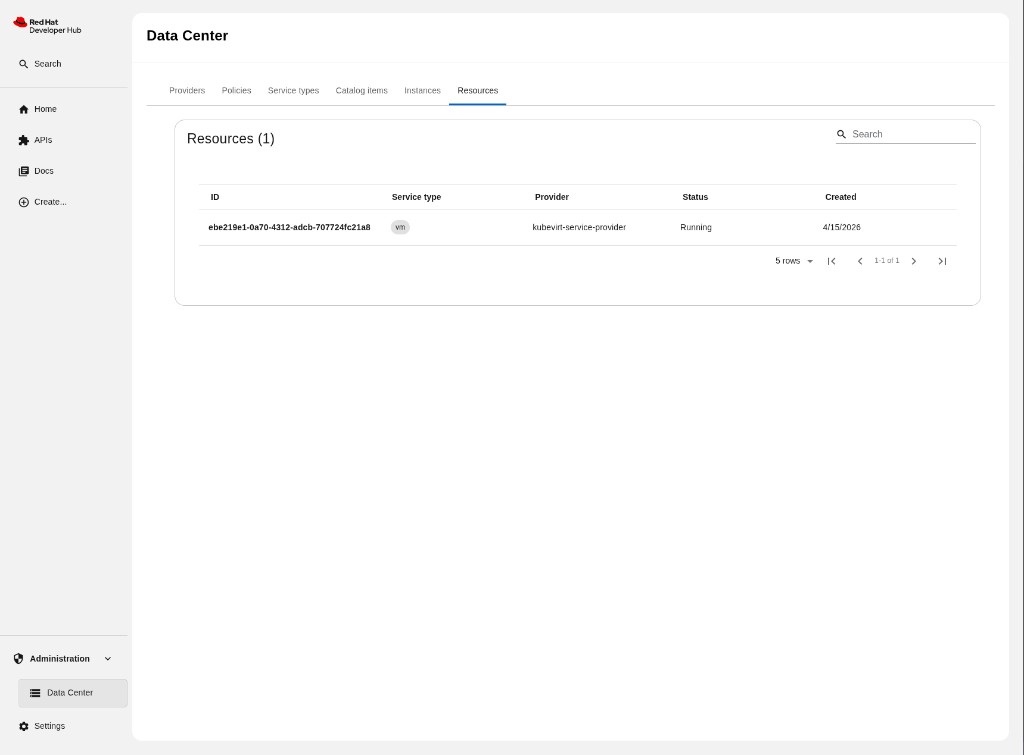
Columns
| Column | Description |
|---|---|
| ID | Unique identifier of the service provider resource. |
| Service type | Service type of this resource (e.g., vm). |
| Provider | Name of the provider where this resource is hosted. |
| Status | Current state of the resource on the provider (e.g., Scheduling, Ready). |
| Created | Date and time the resource was created. |
Actions
Search and pagination are available. If the tab fails to load, an error alert with a Retry button is shown in place of the table. There are no create, edit, or delete actions — resources are managed automatically through the instance lifecycle.
For CLI equivalent operations and a full explanation of the resource lifecycle, see Service Provider Resources.